¶ Lab 3 - Vulnerability Scan
- [previously] “ Lab 1 - Introduction to the Internet and the OSI-model ” Addressing, Addresses,
- [previously] “ Lab 2 - Reconnaissance Phase" Find networks, that include hosts
- [now] “ Lab 3 - Vulnerability Scan ”- Use OpenVAS and Nessus to scan for vulnerabilities in the networks found in Lab 2.
¶ Read in the book
- Read “VULNERABILITY ASSESSMENT TOOLS. ” and “OS Fingerprinting” in chapter 11.3 in the book Paul C. van Oorschot, Computer Security and the Internet: Tools and Jewels from Malware to Bitcoin
- *Read “… Categorizing Malware” in chapter 7.8
¶ Lab Setup
Two persons in each group.
Three computers from the same POD.
Only computers marked with green tape have 32GB RAM.
¶ 🐧 Install WSL -- Windows Subsystem for Linux (no linux yet)

-
Go to the computer with green tape. That one has 32 GB RAM
-
Start a powershell command prompt (not a CMD window)
-
is it installed: wsl --status
-
NOT WORKING: List possible distributions: wsl --list --online
-
INSTALL: wsl --install -d kali-Linux
-
REBOOT
-
(Windows icon) Start Menu -> (Ugly Penguin) WSL
If it does not work, continue with Install ... below
¶ Install WSL kali-linux
In powershell command prompt (not a CMD window):
wsl --list- (nothing installed !?!); then
wsl --list --online wsl --install --distribution kali-Linux
Use Username: kali Password: Network!337
(Always use that password when you choose yourself!)
- Start WSL Kali terminal (Windows menu and click
 WSL (not "WSL Settings") )
 sudo nano /etc/wsl.conf
Make sure that it says
[boot]
systemd=true
- reboot wsl with powershell command: wsl --shutdown (or sudo shutdown now inside kali)
¶ Install (greenbone) OpenVAS
-
Start new Kali terminal window
-
sudo apt update && sudo apt upgrade -y
YES to silently upgrade -
sudo apt install openvas -y
-
Fix problems with the account called "_gvm"
10.1. List data and see that it expires 1970:sudo chage -l _gvm
10.2. Fix it:sudo chage -E -1 _gvm
10.3. Verify change:sudo chage -l _gvm -
sudo gvm-setup(start 10.06)
[*] Please note the generated admin password
[*] User created with password 'XXXXXXXX-YYYY-ZZZZ-UUUU-VVVVVVVVV'.
[*] Configure Feed Import Owner
This take a loooong time (an hour?)
Meanwhile you MUST update your photo on mittkonto.hv.se
wait for "Notes"
wait for "NASL"
wait for "SCAP" (still downloading 10.31) Done Before 10.41
** WRITE DOWN THE PASSWORD !**
sudo gvm-check-setup
(Nevermind the error "'filename != NULL' failed")
Go to https://127.0.0.1:9392
Login with username admin
View: Administration -> Feed Status
STOP clicking in the web GUI until all feeds are current
sudo tail -f /var/log/gvm/* (one message every ~5 minutes??)
FINALLY: I Finished at 11.01
md manage: INFO:2026-09-22 08h59.37 utc:29681: manage_discovery_nvts: Updating Discovery NVTs
md manage: INFO:2026-09-22 08h59.38 utc:29681: manage_discovery_nvts: Updating Discovery NVTs done
SKIP!! DO *NOT* DO THIS; Only if you have a problem later
17 sudo chage -l _gvm
18 sudo chage -E -1 _gvm
19 sudo chage -l _gvmsudo systemctl restart ospd-openvas
sudo systemctl restart gvmd
¶ Networks, not Hosts:
¶ Using free OpenVAS (gvm) Vulnerability Scanner
Task 1: Using OpenVAS
1a/ Scan different networks and find the most interesting one
1b/ Question 0 Submit a PDF-report (auto-generated) of the most "interesting" (one network only) with many CVE's and Vulnerabilities to Canvas
-
MAKE A COPY OF THE PASSWORD !!!
-
sudo gvm-check-setup
<output omitted for clarity>
It seems like your GVM-22.5.0 installation is OK. -
sudo gvm-start
. If you get errors from "task" saving inside the web-browser, fix it with:
sudo chmod -R 777 /var/lib/gvm -
https://127.0.0.1:9392 ← remember the port-number
-
Go back to GUI and select "Administration" -> "Feed Status"
watch both CLI & GUI simultaneously. Wait for "Status" to become "Current"
-
DO *NOT* Touch the web-GUI until all 4 are "Current"
-
Meanwhile: Start a new CLI shell window, and run the command
tail -f /var/log/gvm/*
Watch the logs (one line every 5 minutes)
Again: You MUST update your photo on mittkonto.hv.se -
AVOID: If updating stops for a very loong time AND you get "Failed to find config ‘daba56c8-73ec-11df-a475-002264764cea’"
AVOID: when creating a new Scan, you can manually fix it with
AVOID:sudo greenbone-feed-sync(requires that gvm is stopped, remember start afterwards)
Inside the OpenVAS application (via web-browser)
Scan full NETWORKS with OpenVAS, that is /24's etc
HOSTS (/32's) are for Nessus due to license restrictions
- Create a Target under Configuration->Target menu. Use "Square with plus" icon to create a new one.
Name must end with "-target"
Only scan CISCO-networks, not IT-department - Create a new Task under Scans->Tasks menu. Use "Square with plus" icon to create a new one.
Name must end with "-task"
Question 1 What chapters in the book from P.C. von Oorschot does the vulnerabilities found, fall under? Make a list of chapter titles!
Question 2 Make a list of vulnerability types and map two or three of the discovered vulnerabilities to these classes?
Question 3 2a/ What is CVE? 2b/ What is CVSS? 2c/ Explain what it has to do with vulnerabilites found by OpenVAS!
2d/ What is the current status of cve and cvss in europe and usa regarding Trump administration?
Question 4 Why is nmap not a tool for cybersecurity, only good for old network security, compared to OpenVAS & Nessus?
CLEANUP - Make sure the PC is restored to the original state
c:\PowerShell> wsl --list
c:\PowerShell> wsl --unregister kali-linux
¶ Hosts, not Networks:
¶ Using NESSUS, demo version of commercial software
This is probably more easy in Windows, not Kali-Linux. Switch to the middle computer, PC-B)
    Only scan HOSTS (/32's), not networks, since NESSUS demo
    have license restrictions
Task 2: Using Nessus Professional
A. Using the information from the previous LAN-scans :
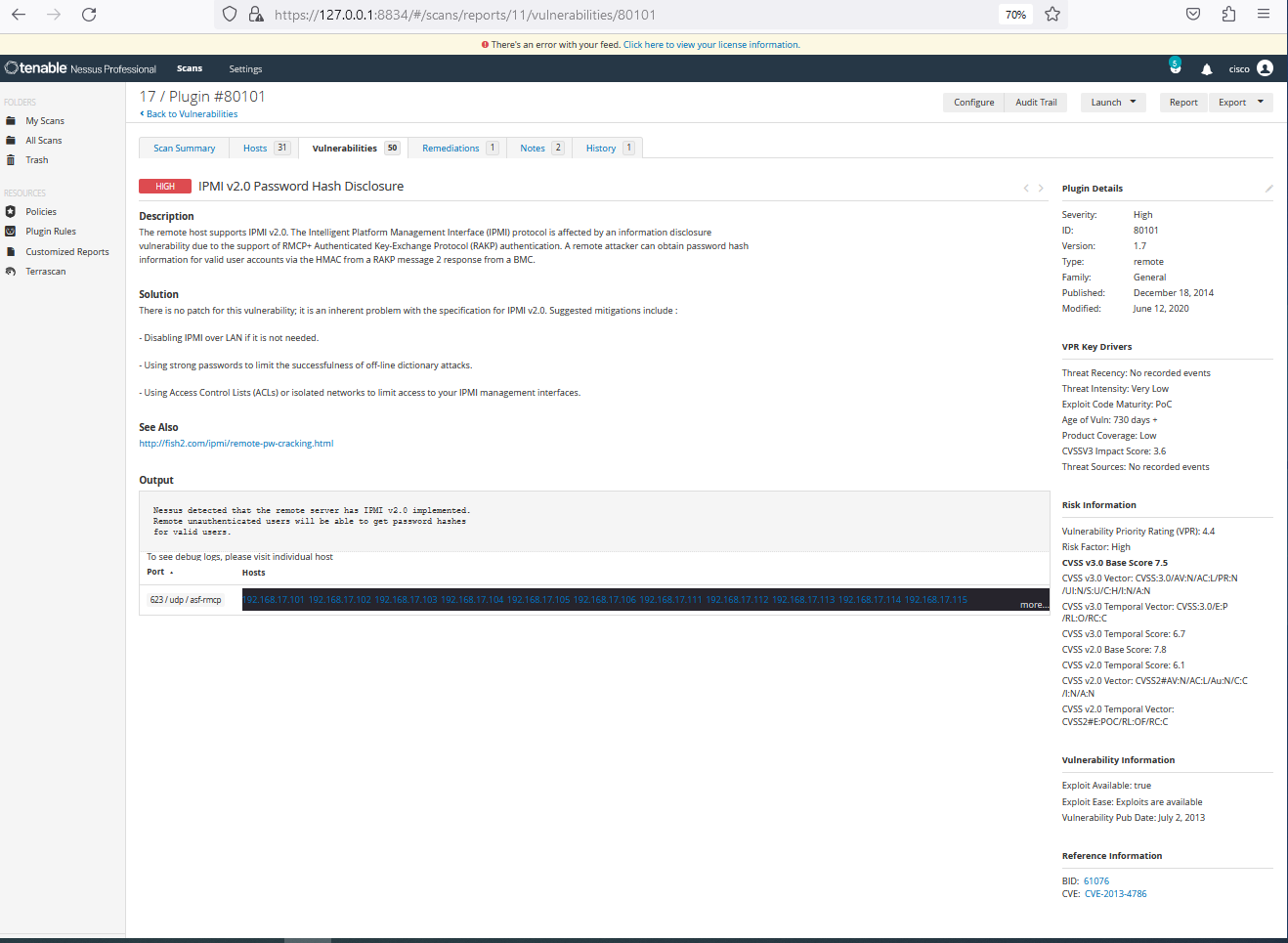
Scan three different interesting hosts and generate one PDF-report (auto-generated)
B. Submit the PDF-report (auto-generated) of the most "interesting" (one host only) with many CVE's and Vulnerabilities to Canvas
Some hints:
- https://www.tenable.com/tenable-for-education/nessus-essentials Free version for students, untested
- https://www.tenable.com/downloads/nessus?utm_source=nessus-trial-thank-you-update&loginAttempted=true
- I guess that the "Nessus Professional" is the version that we want (Trial)
- Activation Code: RZQK-NKWQ-XHNT-4XFD-HC95 ( This is my personal code 2025 /Robert )
- If it asks for “Upgrade …” close the window with X (top right corner)
- Wait for “Compiling Plugin” before scanning – look for the rotating arrows, hoover over them to see percentage
Scan only HOSTS (full IP address) with NESSUS
*NOT* NETWORKS due to license restrictions

Question 5 Why does the findings from Nessus differ from OpenVAS?
Question 6 From what sources does OpenVAS download "signatures"? Where does Nessus get its "feeds"?
Question 7 Why can you feed OpenVAS and Nessus with login credentials?? What is the use of that?
Question 8 Mitigation: 8a/ How does Nessus help you to fix vulnerabilities? 8b/ Can this be automated, so problems can be fixed automatically? if so, how??
Question 9 What did you learn in this lab with OpenVAS and Nessus that you did not know before? What are your key takeaways?
Task X eXtra: Try you luck with the scanner "Nikto" , or "Vuls", and scan the most interesting IP (one host), the same as you choose above. Does it give the same report? What differs??
¶ Send in reports
Upload 2 different PDF-reports, and one PDF-document with your answers (total: 3 PDFs)
- One generated from OpenVAS (most interesting network i.e. one with many servers)
- One generated from Nessus (most interesting host i.e. a very bad server or network device)
- Another report/document; This document contains your answers to all the Question above (total 9)
CLEANUP - Make sure the PC is restored to the original state
Windows Menu > Settings > Add or remove programs
Search for Nessus
klick "..." and select Uninstall
Verify that all Nessus components are gone
¶ Random screenshots

After Scan